
Backup & Restore
The Backup & Restore panel lets you protect your Atlantisboard data with full-system backups. Each backup creates a ZIP archive containing a complete MongoDB database dump and a mirror of all MinIO storage buckets (attachments, branding assets, avatars, fonts, and backgrounds).
Navigate to Admin → Backup to open the panel.
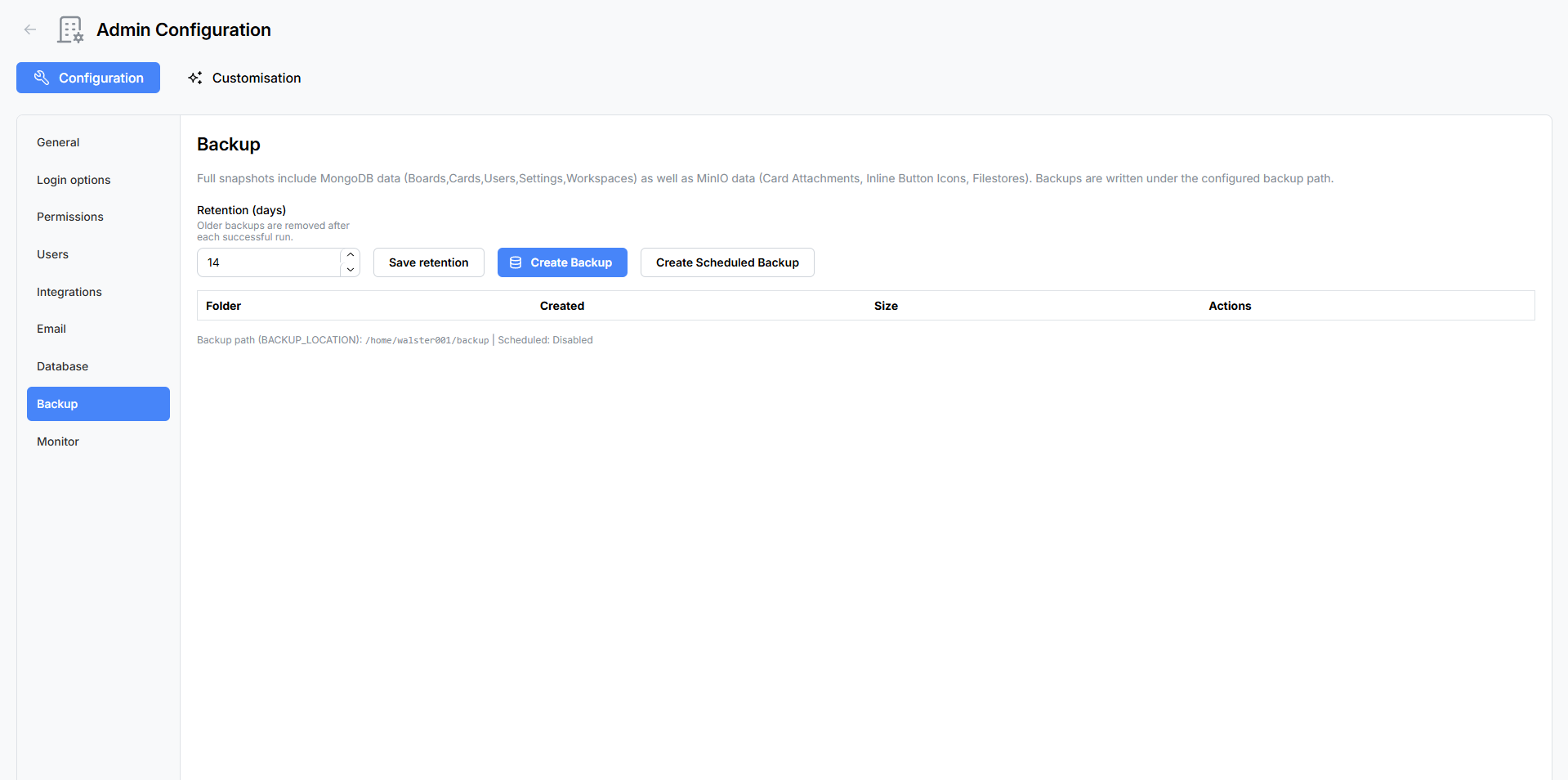
Backup Location
The backup destination is configured via the BACKUP_LOCATION environment variable. This must be an absolute filesystem path on the server host where backup ZIP archives will be stored.
The configured path is displayed read-only at the top of the panel. If no backup location is set, the panel will prompt you to configure the environment variable before any backup features are available.
BACKUP_LOCATION=/data/backups
Docker users: Ensure the backup path is mapped to a Docker volume or bind mount so backups persist outside the container. See Environment Variables Reference for details.
Retention
The Retention setting controls how long old backups are kept before being automatically purged.
| Setting | Range | Description |
|---|---|---|
| Retention (days) | 1–3 650 | Number of days to keep backup archives. Backups older than this are deleted during scheduled cleanup. |
Retention is persisted separately from the environment variables and can be adjusted at any time from this panel.
Manual Backup
Click the Create Backup button to start a one-off backup immediately.
- A modal appears with a custom filename field — enter a descriptive name for this backup (e.g.
pre-upgrade-2026-05-26). - Confirm to start the backup process.
- A progress indicator appears while the backup runs, showing the current phase and percentage.
What’s Included in a Backup
Each backup ZIP archive contains:
- Full MongoDB database dump — BSON exports of all collections in the database.
- MinIO bucket mirror — A complete copy of all object storage buckets:
card-attachments— files attached to cards.branding— login and app branding assets (logos, favicons, backgrounds).user-avatars— user profile pictures.fonts— uploaded custom font files.import-inline— temporary import staging files.
Backup ZIP files themselves are written to BACKUP_LOCATION on the server filesystem (not to a MinIO bucket).
Scheduled Backups
Automated backups run on a configurable schedule so you never have to remember to back up manually.
- Click Create Scheduled Backup.
- Set the frequency — a number between 1 and 3 650 representing the interval in days between backups.
- Save the schedule.
The panel displays the current schedule status:
| Status | Display |
|---|---|
| Active | “Every N day(s)” with the configured interval. |
| Disabled | “Disabled” — no scheduled backups are running. |
| Last Run | Timestamp of the most recent scheduled backup. |
Scheduled backups use the same format and contents as manual backups. They respect the retention setting — backups older than the configured retention period are automatically purged.
Backup History
A table at the bottom of the panel lists all existing backup archives.

| Column | Description |
|---|---|
| Folder / Filename | The backup archive name and its unique folder ID. |
| Created | The date and time the backup was created. |
| Size | The file size of the ZIP archive. |
| Actions | Restore or Delete buttons. |
Restoring from a Backup
The restore process replaces your entire database and MinIO storage with the contents of a backup archive.

Restore Flow
- Locate the backup you want to restore in the Backup History table.
- Click the Restore button.
- A confirmation modal appears. To prevent accidental restores, you must type the exact folder ID of the backup archive into the confirmation field.
- Click Confirm Restore to begin.
- A progress bar appears showing the restore phase and completion percentage as data is imported.
Restore Phases
The progress bar cycles through several phases during restoration:
- Extracting — Unpacking the ZIP archive.
- Restoring database — Importing BSON collections back into MongoDB.
- Restoring storage — Mirroring bucket contents back into MinIO.
- Finalising — Verifying data integrity and restarting services.
Warning: Restoring a backup is a destructive operation. All current data in the database and MinIO storage is replaced with the backup contents. Create a fresh backup of your current state before restoring an older one, in case you need to revert.
Deleting a Backup
Click the Delete button next to any backup in the history table to permanently remove the archive from disk. A confirmation prompt appears before the file is deleted.
Backup Job Polling
While a backup or restore is in progress, the panel polls the server for status updates. A progress indicator displays:
- The current phase of the operation (e.g. “Dumping database”, “Mirroring buckets”).
- A percentage showing how much of the operation is complete.
You can navigate away from the panel while a backup is running — the job continues in the background. Return to the Backup panel to check progress or view the completed backup in the history table.
Best Practices
- Set a backup location early — configure
BACKUP_LOCATIONduring initial setup before you start creating boards. - Enable scheduled backups — even a weekly schedule (every 7 days) provides a safety net against data loss.
- Test your backups — periodically restore a backup to a staging environment to verify archive integrity.
- Monitor disk space — backup archives can grow large, especially with many card attachments. Use the System Monitor to track disk usage.
- Adjust retention — set a retention period that balances storage costs with your recovery requirements.
Related Pages
- Environment Variables Reference —
BACKUP_LOCATION,BACKUP_MC_PATH, andBACKUP_MC_MIRROR_ALIASsettings. - Database Maintenance — clean up orphaned data before creating a backup.
- System Monitor — monitor disk usage and system health.
- Updating & Maintenance — always back up before upgrading.