
Password Reset & Email Verification
This page covers two related workflows: recovering access to your account when you forget your password, and verifying your email address after registration.
Both features require that the administrator has configured a working SMTP server in Email (SMTP) Configuration.
Forgot Password Flow
If you forget your password, Atlantisboard provides a self-service reset workflow.
Step-by-Step
-
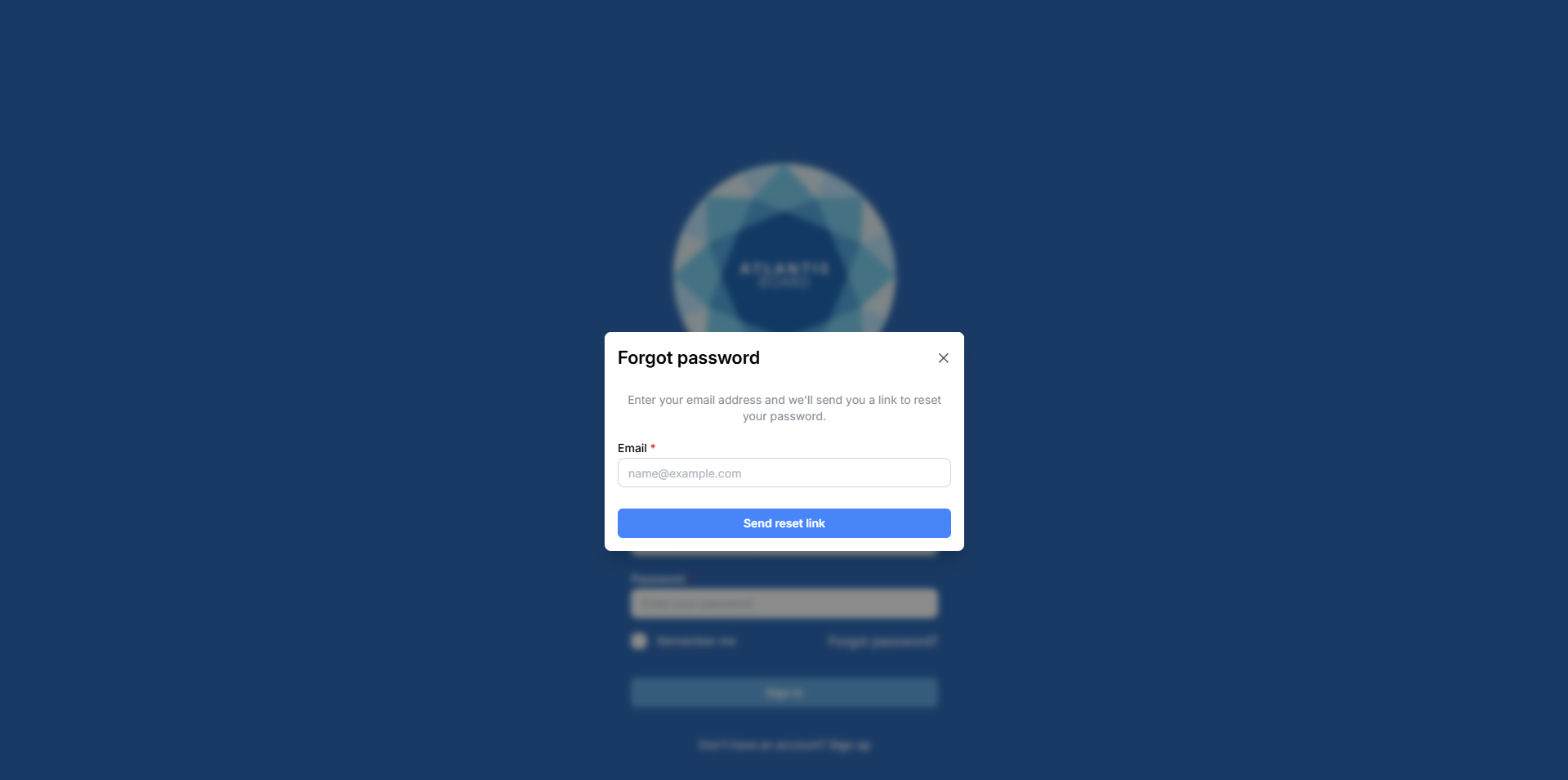
Click “Forgot password?” — On the login page, click the “Forgot password?” link below the sign-in form.
-
Enter your email address — Type the email address associated with your account and submit the form.
-
Check your inbox — Atlantisboard sends a password reset email containing a unique, time-limited reset link. Check your spam or junk folder if the email does not appear in your inbox within a few minutes.
-
Set a new password — Click the reset link in the email to open the password reset page. Enter your new password and confirm it.

Your new password must meet the same strength requirements as registration:
- Minimum 12 characters
- At least one uppercase letter
- At least one lowercase letter
- At least one number
- At least one special character
The 5-segment strength meter provides real-time feedback as you type.
-
Auto-redirect — After successfully resetting your password, you are automatically redirected to the login page after 2 seconds. Sign in with your new password.
Important Notes
- The reset link is single-use — once clicked, it cannot be used again.
- If the link expires before you use it, return to the login page and request a new one.
- For security, the “Forgot password” form does not reveal whether an email address is registered. You will see a confirmation message regardless of whether the address exists in the system.
- Password reset emails require a configured SMTP server. If no SMTP is configured, the reset feature is unavailable — contact your administrator.
Email Verification
When mandatory email verification is enabled by the administrator (in Login Options), new users must verify their email address before they can sign in.
Verification Flow
- Register an account — Complete the registration form as described in Registration & Sign-In.
- Check your email — A verification email is sent automatically to the address you registered with. The email contains a verification link.
- Click the verification link — This confirms your email address and activates your account.
- Sign in — Once verified, return to the login page and sign in normally.
Resend Verification
If the verification email does not arrive or the token expires:
- A Resend verification option is available on the post-registration screen.
- You can also request a new verification email from the login page if your account is not yet verified.
- Verification tokens expire after 10 minutes, so resend if needed.
Verification Status
- Your verification status is visible to administrators in the User Management panel under the Email Verified column.
- Unverified accounts cannot sign in when mandatory verification is enabled.
- If mandatory verification is later disabled by the administrator, unverified accounts can sign in without completing verification.
Troubleshooting
“I didn’t receive the email”
- Check your spam/junk folder.
- Ensure the administrator has configured a working SMTP server (see Email Configuration).
- Verify that the From Address configured in SMTP settings is not blocked by your email provider.
- Ask your administrator to send a test email from the SMTP panel to confirm email delivery is working.
“The link has expired”
- Password reset and verification tokens are time-limited for security.
- Request a new link by repeating the forgot-password or resend-verification flow.
“Account is locked”
- If your account is locked due to failed login attempts, a password reset alone will not unlock it. Contact your administrator to unlock your account from the User Management panel, then reset your password if needed.
Related Pages
- Registration & Sign-In — account registration and the sign-in process.
- Email (SMTP) Configuration — SMTP setup required for password reset and verification emails.
- Login Options — enable or disable mandatory email verification.
- User Management — administrators can view verification status and unlock accounts.
- Password & Security — change your password from within the app.