
Email Branding
The Email Branding panel lets you customise the visual appearance of all outgoing emails sent by Atlantisboard — including password reset links, email verification messages, and board invitation notifications. A live preview shows exactly how your branded emails will look.
Navigate to Admin → Customisation → Email Branding to open the panel.
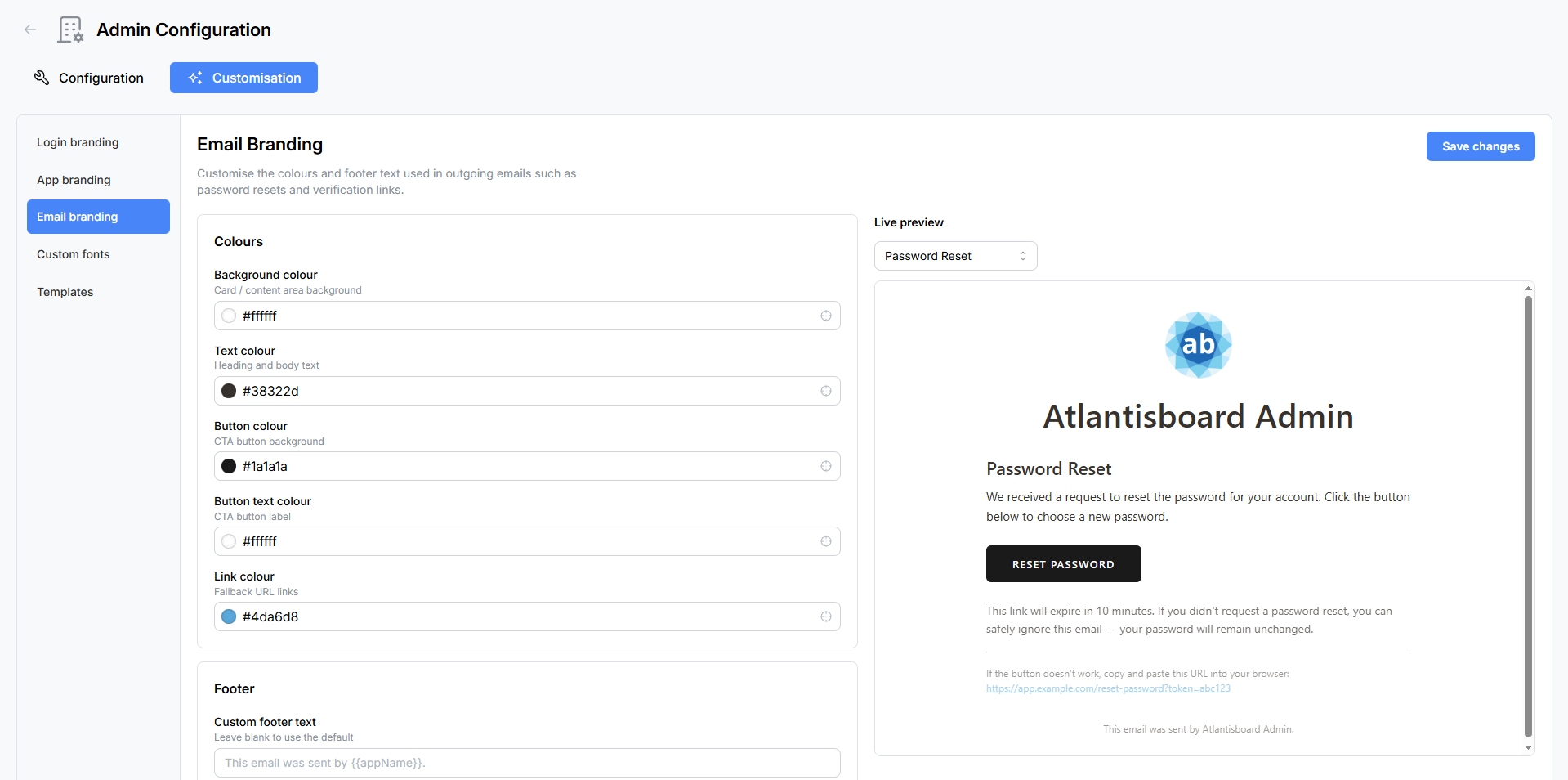
Live Preview
The right side of the panel displays a live preview of a rendered email template. A template selector at the top of the preview lets you switch between different email types to see how your colour choices look in context:
- Password reset email
- Email verification email
- Board invitation email

The preview updates in real-time as you adjust colours and footer text.
Colours
The Colours card provides five colour pickers that control the key visual elements of every outgoing email.
| Setting | Type | Default | Description |
|---|---|---|---|
| Background colour | Colour picker | #f2efe5 |
The outer background colour of the email body. |
| Text colour | Colour picker | #38322d |
The primary text colour used for headings and body copy. |
| Button colour | Colour picker | #1a1a1a |
The background colour of call-to-action buttons (e.g. “Reset Password”, “Verify Email”). |
| Button text colour | Colour picker | #ffffff |
The text colour inside call-to-action buttons. |
| Link colour | Colour picker | #4da6d8 |
The colour of hyperlinks within the email body. |
These colours are applied consistently across all email templates, ensuring a unified brand appearance regardless of the email type.
Footer
The Footer card lets you add a custom footer line that appears at the bottom of every outgoing email.
| Setting | Type | Description |
|---|---|---|
| Footer text | Text input | A custom message displayed in the email footer. Supports the `` placeholder variable, which is automatically replaced with your application name at send time. |
Using the `` Placeholder
The `` variable is replaced with the application name configured in Login Branding. This keeps your emails consistent with your branding without hardcoding the name.
Example input:
Sent by — Your project management companion.
Example output (if app name is “Team Boards”):
Sent by Team Boards — Your project management companion.
If no custom app name is configured, `` falls back to “Atlantisboard”.
Saving Changes
Click Save Changes to persist your email branding settings. Changes apply to all future outgoing emails immediately. Previously sent emails are not affected.
Tips
- Test your branding — after saving, send a test email from the Email (SMTP) Configuration panel to see your branded template in a real email client.
- Check dark mode — many email clients render emails differently in dark mode. Test your colour choices in both light and dark email clients.
- Keep contrast high — ensure your text colour has sufficient contrast against the background colour for readability. Similarly, button text should be clearly legible against the button background.
- Keep the footer concise — email footers that are too long can look cluttered, especially on mobile devices.
Related Pages
- Email (SMTP) Configuration — configure your SMTP server and send test emails.
- Login Branding — set the app name used by the `` placeholder.
- App Branding — customise the in-app navbar and homepage.