
Login Branding
The Login Branding panel lets you fully customise the appearance of the login and registration pages. Every change is reflected in a live preview so you can see exactly how your login page will look before saving.
Navigate to Admin → Customisation → Login Branding to open the panel.
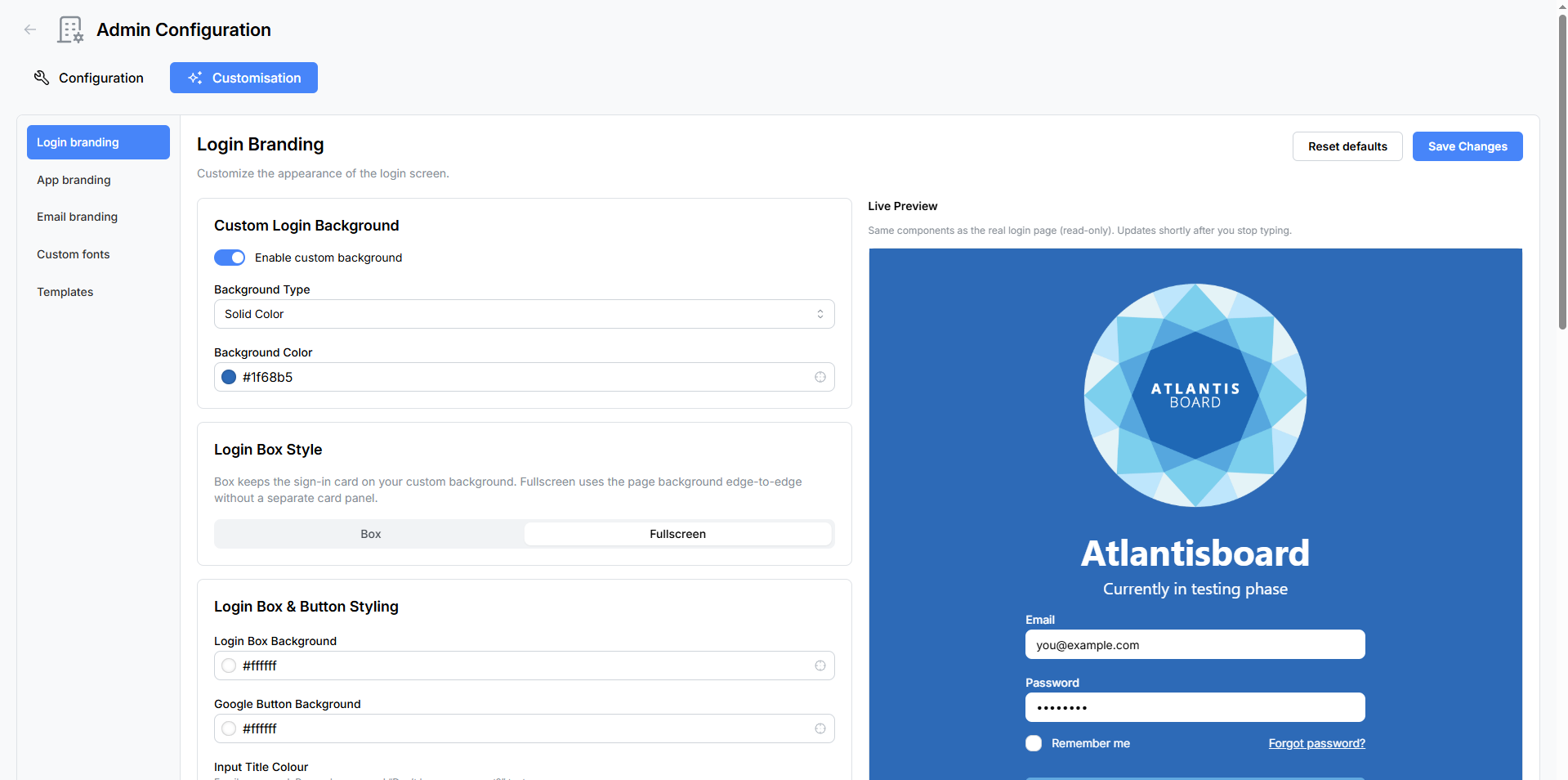
Live Preview
The left side of the panel displays a real-time preview of the login page. It uses the same components as the actual login screen, rendered in a read-only state. The preview updates shortly after you stop typing or changing a setting, so you can experiment freely.

Custom Login Background
Control the background behind the login form.
| Setting | Type | Default | Description |
|---|---|---|---|
| Enable custom background | Toggle | Off | When disabled, the default background is used. |
| Background type | Selector | Solid Colour | Choose between Solid Colour and Gradient. |
| Background colour | Colour picker | #1f68b5 |
The primary background colour (used for both solid and gradient start). |
| Gradient end colour | Colour picker | #e7f5ff |
The secondary colour for gradient backgrounds. Only visible when Gradient is selected. |
Login Box Style
Choose the overall layout of the login form.
| Option | Description |
|---|---|
| Box | The login form is displayed inside a centered card with rounded corners and a shadow. |
| Fullscreen | The login form fills the entire viewport without a card container. |
This is a segmented control — click the option you prefer.
Login Box & Button Styling
Fine-tune the colours of every element within the login form.
| Setting | Type | Default | Description |
|---|---|---|---|
| Login box background | Colour picker | #ffffff |
Background colour of the login card (Box layout only). |
| Google button background | Colour picker | #ffffff |
Background colour of the “Sign in with Google” button. |
| Google button text | Colour picker | #000000 |
Text colour of the Google sign-in button. |
| Input title colour | Colour picker | #495057 |
Colour of form field labels (e.g. “Email”, “Password”). |
| Link title colour | Colour picker | #228be6 |
Colour of text links (e.g. “Forgot password?”, “Create account”). |
| Sign-in button colour | Colour picker | #228be6 |
Background colour of the primary sign-in button. |
| Sign-in button text | Colour picker | #ffffff |
Text colour of the sign-in button. |
Custom Login Logo
Display your organisation’s logo on the login page.

| Setting | Type | Description |
|---|---|---|
| Enable logo | Toggle | Show or hide the logo on the login page. |
| Upload logo | File upload | Accepted formats: PNG, JPEG, WebP, SVG. Maximum file size: 5 MB. |
| Logo size | Selector | Choose from predefined pixel sizes to control how large the logo appears. |
| Remove logo | Button | Delete the uploaded logo and revert to no logo. |
The logo is displayed with a circular crop on the login page, positioned above the login form.
Custom App Name
Display your application’s name prominently on the login page.
| Setting | Type | Default | Description |
|---|---|---|---|
| Enable app name | Toggle | Off | Show or hide the app name on the login screen. |
| Application name | Text input | — | The name to display (e.g. “My Company Board”). |
| Font family | Selector | System UI | Choose from System UI or any uploaded custom fonts. |
| Font size | Selector | — | Options: 32, 36, 40, 44, 48, or 56 px. |
| Colour | Colour picker | #1f68b5 |
Text colour of the app name. |
Custom Tagline
Add a short subtitle or description below the app name.
| Setting | Type | Default | Description |
|---|---|---|---|
| Enable tagline | Toggle | Off | Show or hide the tagline. |
| Tagline text | Text input | — | The tagline to display (e.g. “Organise. Collaborate. Deliver.”). |
| Font family | Selector | System UI | Choose from System UI or any uploaded custom fonts. |
| Font size | Selector | — | Options: 14, 16, 18, 20, 22, or 24 px. |
| Colour | Colour picker | #868e96 |
Text colour of the tagline. |
Browser Tab & Favicon
Customise the browser tab title and favicon for the entire application.
| Setting | Type | Description |
|---|---|---|
| Enable custom tab title | Toggle | Override the default browser tab title. |
| Tab title | Text input | The custom title shown in the browser tab. |
| Enable custom favicon | Toggle | Override the default Atlantisboard favicon. |
| Upload favicon | File upload | Accepted formats: PNG, ICO, SVG, WebP. Maximum file size: 512 KB. |
Saving and Resetting
- Save Changes — Persists all current settings. The live login page updates immediately for all users.
- Reset Defaults — Opens a confirmation modal, then restores all Login Branding settings to their factory defaults. This removes uploaded logos, favicons, and all colour customisations.
Related Pages
- App Branding — customise the in-app navbar and homepage appearance.
- Email Branding — customise outgoing email templates.
- Custom Fonts — upload fonts for use in branding selectors.