
Board Settings: List Settings
The List Settings panel controls board-wide defaults for how lists behave and appear. These settings apply uniformly to all lists on the board.
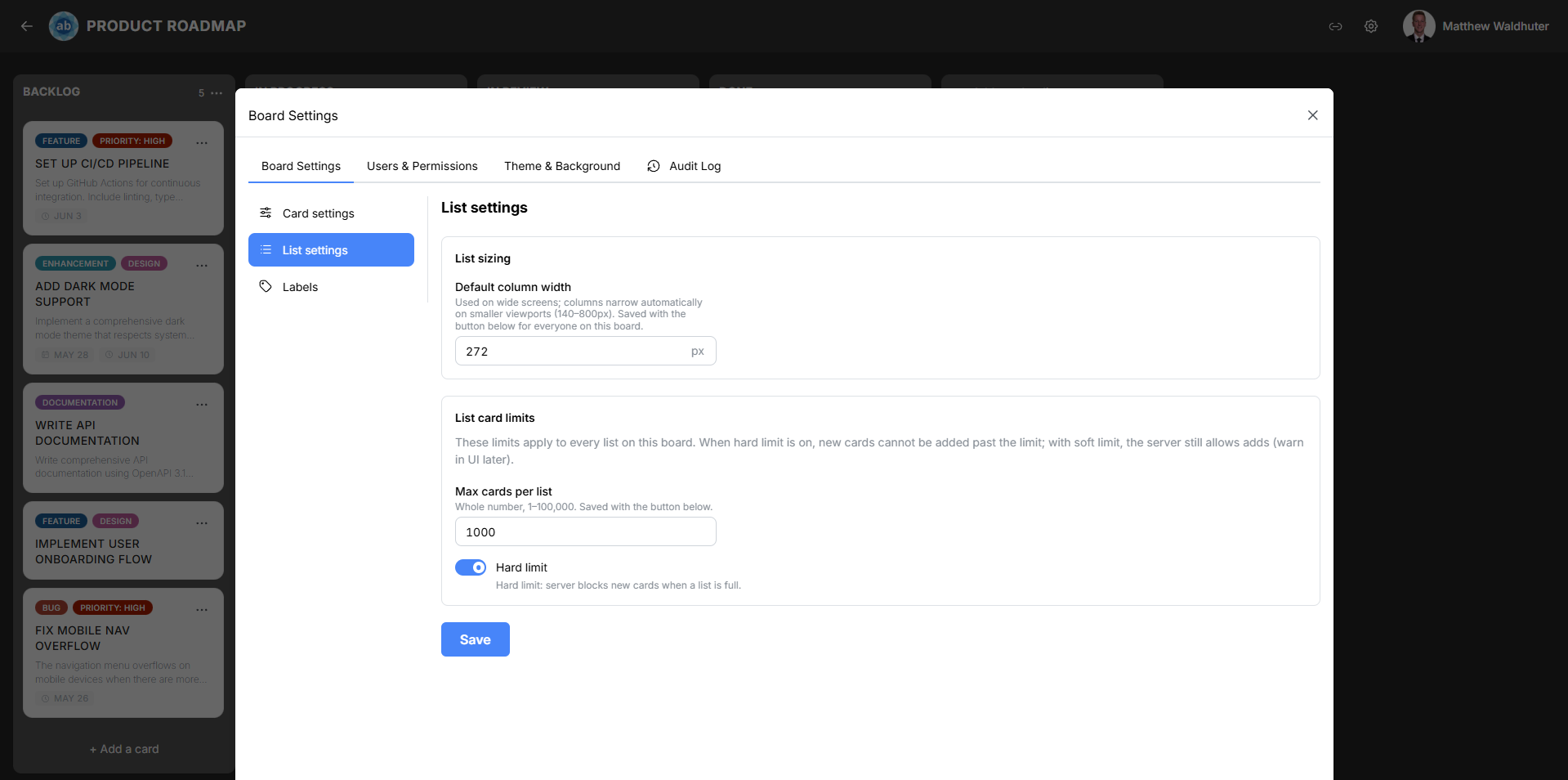
Accessing List Settings
- Open a board.
- Click the gear icon (settings) in the board navbar.
- Navigate to the Board Settings tab.
- Locate the List Settings sub-panel.
Default Column Width
Control how wide each list column is on the board canvas.
| Setting | Details |
|---|---|
| Range | 140 px to 1000 px |
| Effect | All lists on the board use the same width. |
| When to adjust | Use narrower widths for boards with many lists so more columns fit on screen. Use wider widths when cards have long titles or when description previews are enabled. |
Changes to the column width take effect immediately and are reflected for all board members.
Work-in-Progress (WIP) Limits
WIP limits cap the number of cards allowed in each list, helping teams maintain focus and avoid bottlenecks.
Max Cards per List
Set the maximum number of cards a list can contain.
| Setting | Details |
|---|---|
| Range | 1 to 100,000 cards |
| Default | No limit (disabled) |
| Applies to | All lists on the board |
Hard vs. Soft Limit
Choose how the WIP limit is enforced:
| Mode | Behaviour |
|---|---|
| Hard limit | When a list reaches the card limit, the “Add card” button is disabled and cards cannot be moved into the list. This strictly enforces the limit. |
| Soft limit | When a list reaches the card limit, a visual warning appears on the list header (e.g., the card count badge changes colour), but cards can still be added or moved in. This serves as a guideline rather than a strict rule. |
Why Use WIP Limits?
WIP limits are a core practice in Kanban methodology:
- Prevent overload — keep team members from taking on too many tasks simultaneously.
- Identify bottlenecks — when a list consistently hits its limit, it signals a workflow constraint that needs attention.
- Improve flow — by limiting work in progress, teams tend to complete tasks faster and more consistently.
Changing Settings
All List Settings changes are:
- Immediate — the board updates as soon as you change a value.
- Board-wide — settings apply to all lists equally (individual lists cannot have different widths or WIP limits).
- Synced in real time — all connected users see the changes instantly.
Related Pages
- Lists & Columns — creating, renaming, and managing individual lists.
- Board Settings: Card Settings — toggle card metadata visibility.
- Board Overview — the board canvas where list settings take effect.
- Cards — the cards that live within lists.