
Profile Settings
The Profile Settings modal lets you personalise your Atlantisboard identity — your display name, avatar, and preferred language. These settings affect how you appear to other users across boards, comments, and activity feeds.
Accessing Profile Settings
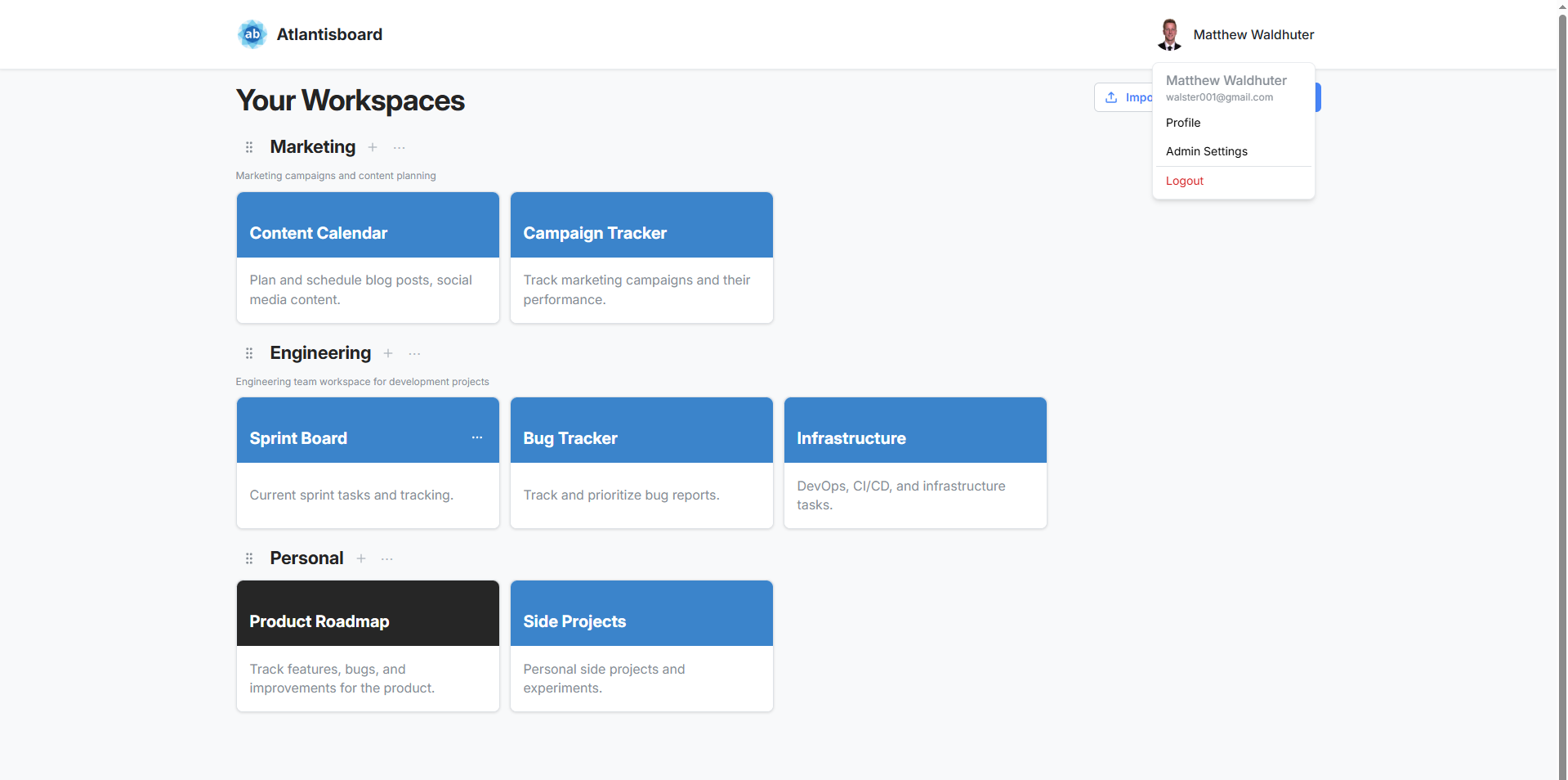
- Click your avatar or name in the top-right corner of the navigation bar.
- Select Profile from the dropdown menu.
The Profile Settings modal opens.
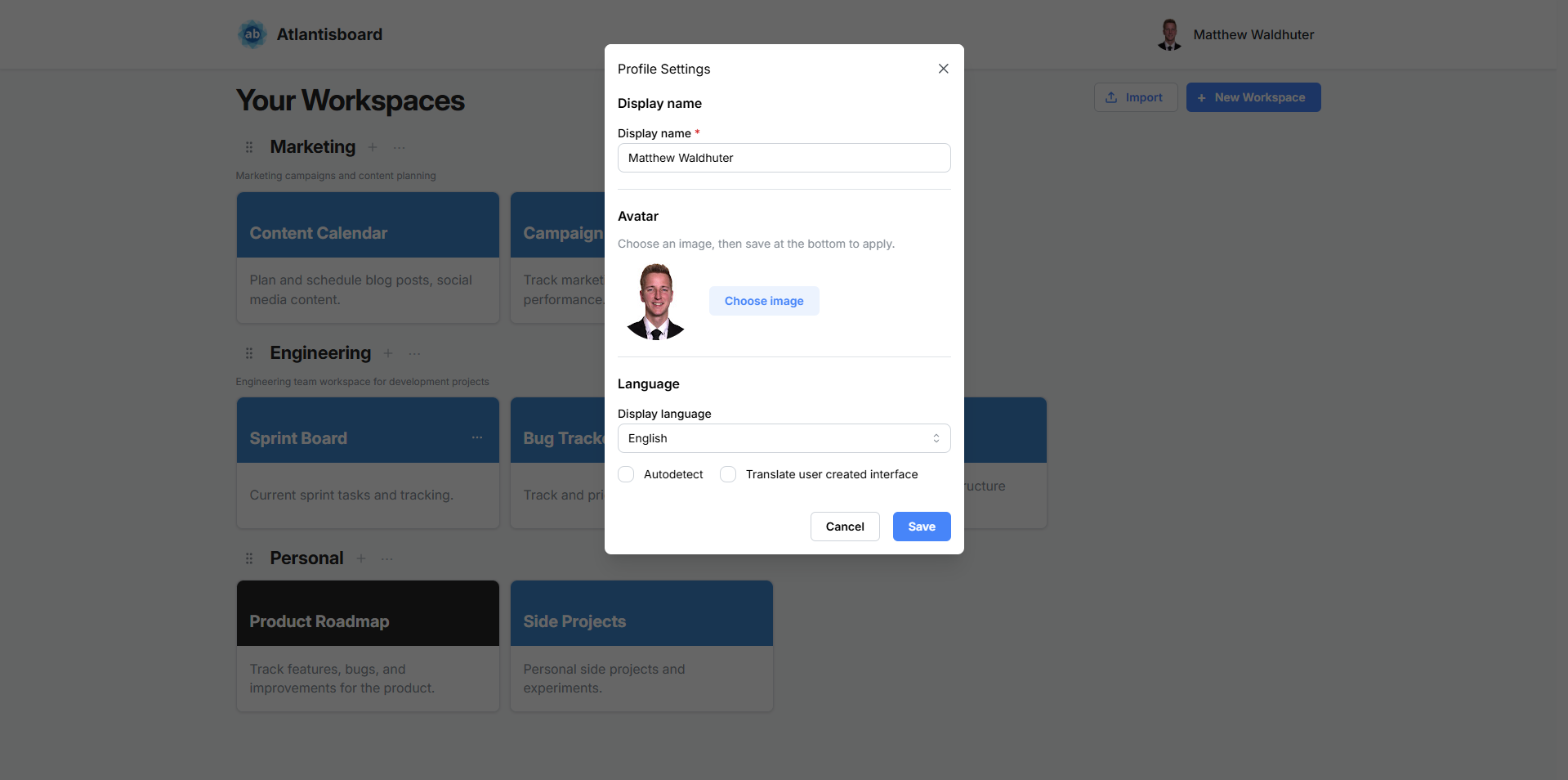
Display Name
Your display name is shown throughout Atlantisboard wherever your identity appears — card assignee avatars, comment author names, activity logs, and board member lists.
| Setting | Type | Description |
|---|---|---|
| Display Name | Text input | Your full name or preferred display name. This can be changed at any time. |
Avatar
Your avatar is the profile picture displayed next to your name across the application.
Uploading an Avatar
- Click the avatar area or the upload button to select an image file.
- Accepted formats: JPEG, PNG, WebP.
- The uploaded image is automatically resized to a square to fit the circular avatar format used throughout the app.
Removing an Avatar
- Click the Remove button to delete your uploaded avatar.
- If your account is linked to a Google account (via Google OAuth), removing your uploaded avatar restores your Google profile picture as a fallback.
- If no Google account is linked, removing the avatar displays a default placeholder.
Avatar Display
- Avatars are displayed as circular thumbnails throughout the application.
- On board cards, up to 4 assignee avatars are shown, with a
+Noverflow indicator for additional assignees. - Your avatar is stored in the MinIO
user-avatarsbucket and is included in backups.
Language
The Language selector lets you choose the display language for the Atlantisboard interface.
| Option | Description |
|---|---|
| English | English (default). |
| Spanish | Español — Spanish translation. |
| French | Français — French translation. |
| German | Deutsch — German translation. |
| Autodetect | Automatically detects your browser’s language setting and uses the closest available translation. |
| Translate | Falls back to browser-based translation for languages not directly supported. |
The language setting affects UI labels, buttons, form fields, notifications, and system messages. It does not affect user-generated content (card titles, descriptions, comments, etc.).
Saving Changes
Click the Save button at the bottom of the modal to persist all profile changes (display name, avatar, and language) in a single operation. A success notification confirms that your profile has been updated.
Changes take effect immediately — your updated name and avatar are visible to other users in real-time across all boards and workspaces.
Related Pages
- Password & Security — change your password and set your theme preference.
- Notification Preferences — configure how you receive notifications.
- Google OAuth Sign-In — linking your Google account and profile picture fallback.