
Creating & Managing Boards
Boards are the core workspace element in Atlantisboard — each board represents a project, workflow, or collection of tasks. This page covers how to create boards and manage them from the home page.
Creating a Board
To create a new board:
- Navigate to the home page.
- Locate the workspace section where you want the board to live.
- Click the Add Board button within that workspace section.
- The Create Board modal appears.
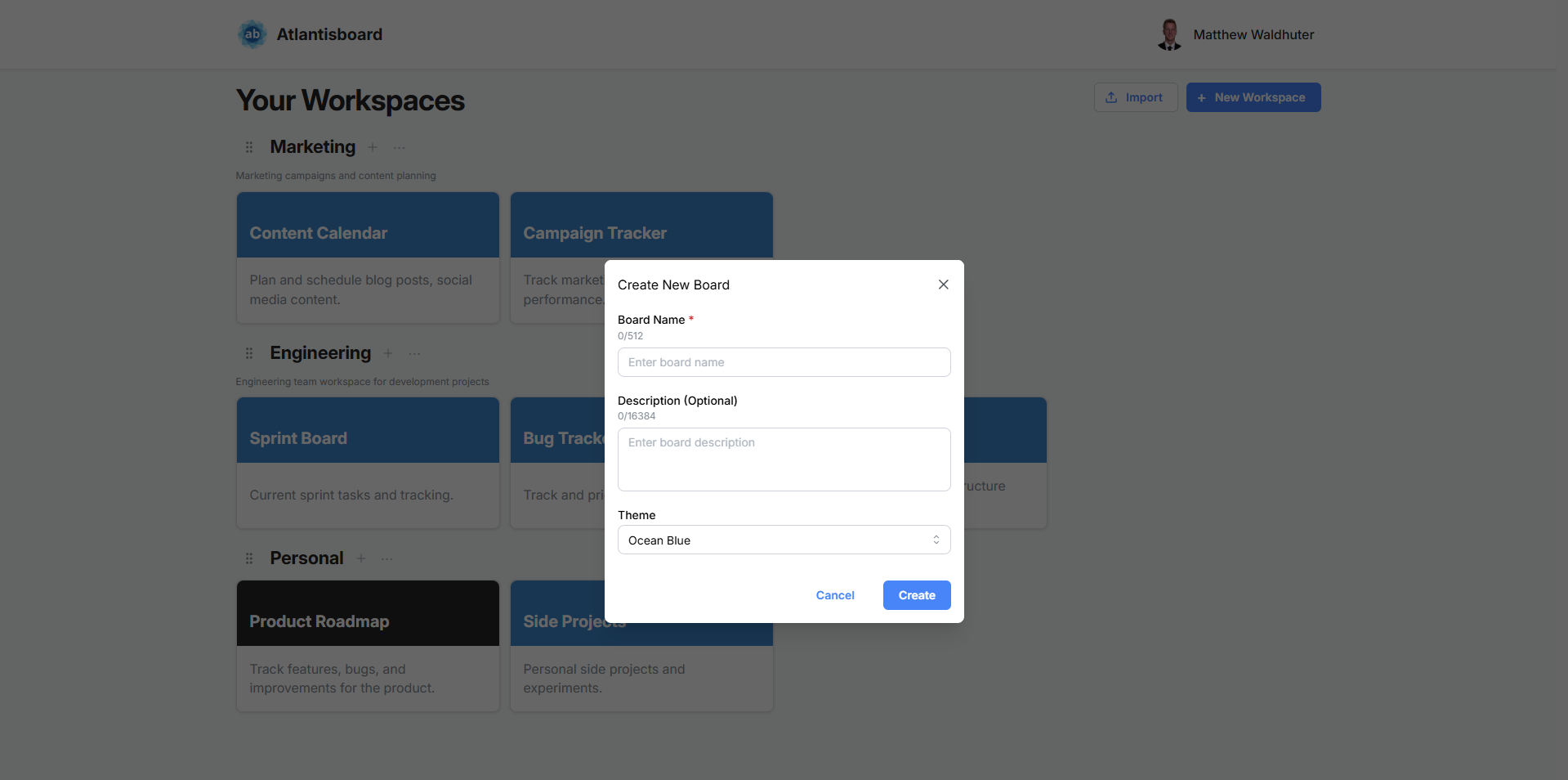
Create Board Modal
The modal includes the following fields:
| Field | Details |
|---|---|
| Board name | Required. A live character counter shows how many characters remain. |
| Description | Optional. Provides context about the board’s purpose. Also has a live character counter. |
| Theme | Select a visual theme from the available system themes (Ocean Blue, Sunset Orange, Forest Green, etc.) and any custom themes you have created. The theme controls colours across the board’s navbar, lists, cards, and detail views. |
The board is created inside the workspace section where you clicked “Add Board” — there is no separate workspace selector in the modal.
Board Visibility
Boards support three visibility levels:
- Private (default) — only explicitly added members can access the board.
- Workspace — all members of the parent workspace can access the board.
- Public — any logged-in user can view the board.
Board Card Context Menu
On the home page, each board tile has a three-dot menu icon (or you can right-click the tile) to access the board card context menu.
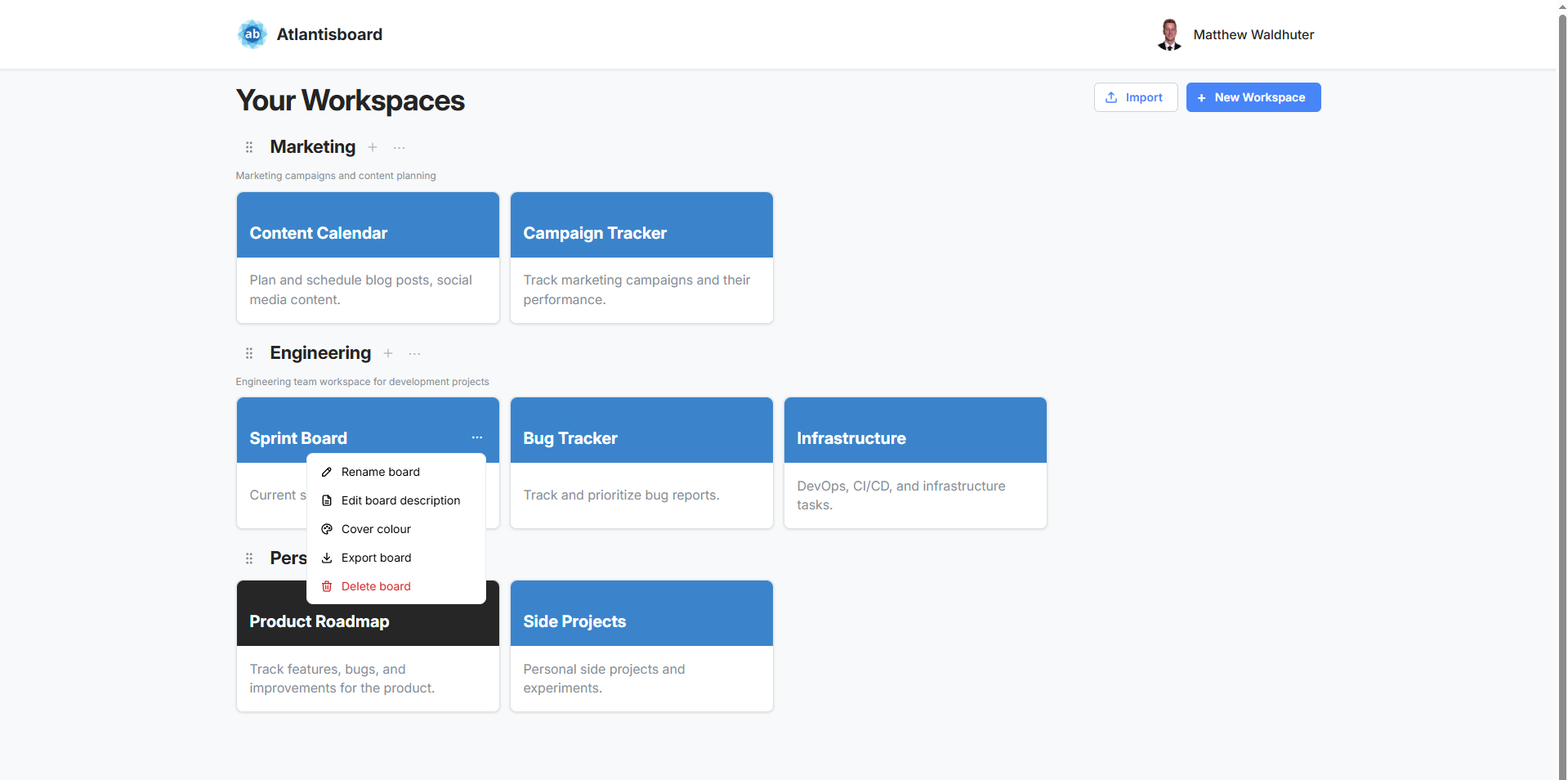
Available Actions
| Action | Description |
|---|---|
| Rename board | Change the board’s display name inline. |
| Edit description | Update the board’s description text. |
| Change colour | Open a background colour preset picker to quickly change the board tile’s colour on the home page. |
| Export board | Download the board in one of the supported export formats (CSV, Trello® JSON, WeKan® JSON, or Atlantisboard JSON). See Exporting Boards. |
| Delete board | Permanently remove the board and all its data. A confirmation modal requires you to acknowledge the action before deletion proceeds. |
Permissions
Not all actions are available to every user. The context menu respects your role and permissions on the board:
- Renaming, editing descriptions, and changing colours require board-level edit permissions.
- Exporting requires the appropriate export permission for the chosen format.
- Deleting a board is restricted to board owners and users with the delete permission.
Board Tiles on the Home Page
Board tiles provide at-a-glance information about each board:
- Board name — clearly displayed on the tile.
- Background colour — reflects the board’s theme or a custom colour set via the context menu.
- Quick access — click anywhere on the tile to open the board.
- Drag-and-drop — drag tiles to reorder within a workspace or move between workspaces.
Related Pages
- The Home Page — home page layout and workspace sections.
- Workspaces — organising boards into workspaces.
- Board Overview — what you see when you open a board.
- Exporting Boards — export formats and how to download board data.
- Theme & Colouring — applying themes to boards.