
Importing Boards
Atlantisboard can import boards from multiple sources, making it easy to migrate from other tools or restore from backups. The import system handles user mapping, format translation, and progress tracking.
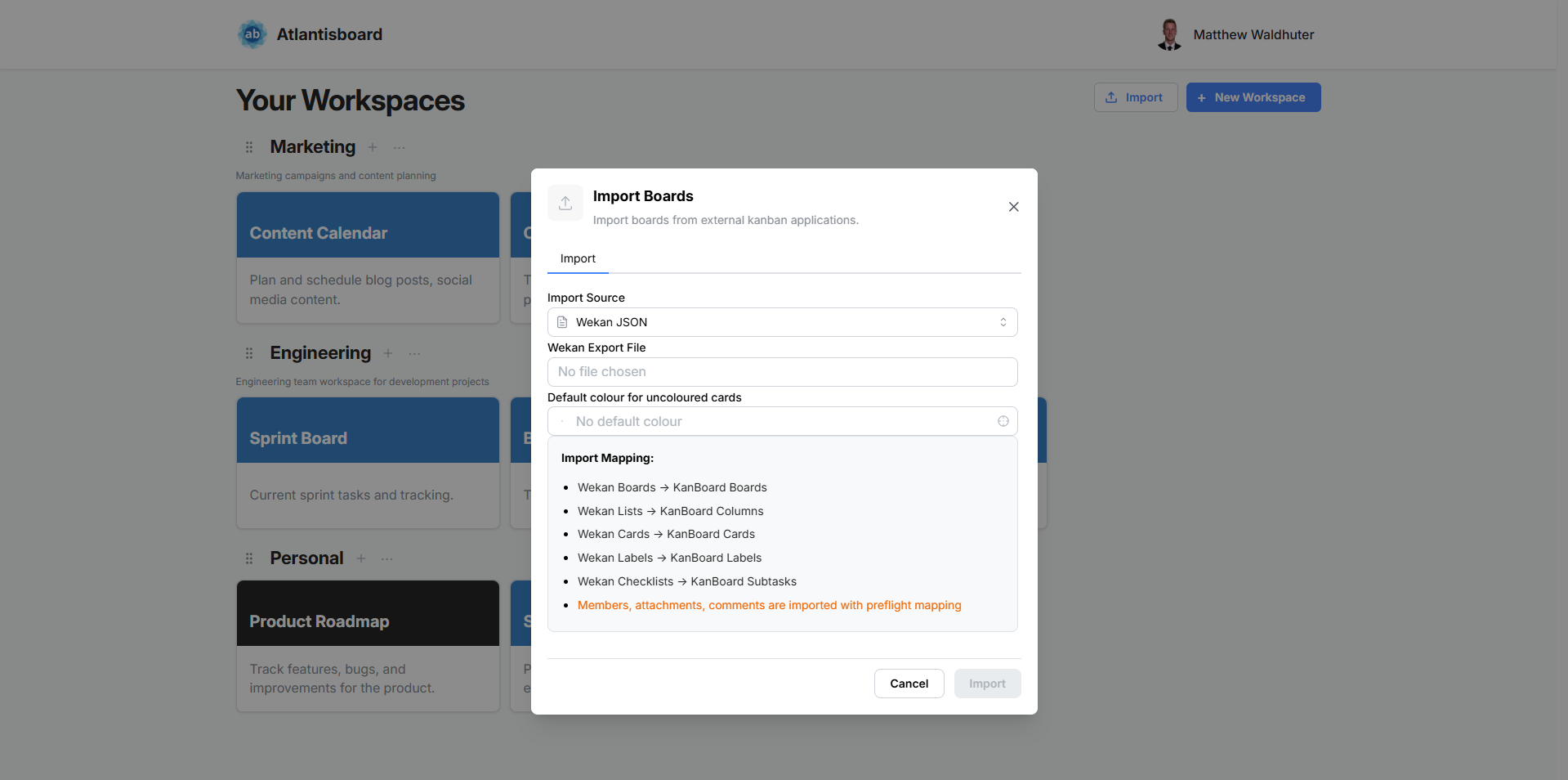
Supported Import Formats
| Format | Description | Permission |
|---|---|---|
| Atlantisboard JSON | Native format with full fidelity — preserves all board data including attachments, settings, and metadata. | (standard import capability) |
| Trello® JSON | Import directly from Trello®’s board export file. Translates Trello® lists, cards, labels, checklists, and comments. | import.trello |
| WeKan® JSON | Import from WeKan®’s board export file. Handles WeKan®-specific structures including swimlanes. | import.wekan |
| CSV / TSV | Import tabular card data into an existing board. Each row becomes a card with mapped columns. | (standard import capability) |
Prerequisites
Before importing, ensure:
- You have the Import Boards capability enabled on your user account (configured by an app admin in User Management).
- For Trello®/WeKan® imports, you have the appropriate format-specific permission in your role.
- Your import file does not exceed the maximum size (configurable via
BOARD_IMPORT_MAX_MB, default 35 MB).
Complete Import Flow
The import process follows 7 steps:
Step 1 — Open the Import Modal
Navigate to the home page and click the Import button. The Import/Export modal opens with the Import tab active.
Step 2 — Select the Import Format
Choose one of the four supported formats. The interface adapts to show options specific to your selected format.
Step 3 — Upload the File
Click the upload area or drag-and-drop your export file. The file is validated client-side for correct format and size before proceeding.
Step 4 — Preflight Parsing (Trello® & WeKan®)
For Trello® and WeKan® imports, the file is parsed client-side to:
- Detect all users referenced in the export.
- Identify board members, card assignees, and comment authors.
- (WeKan® only) Detect legacy inline buttons with potentially broken icon URLs.
This step prepares data for the user management and button replacement tabs.
Step 5 — User Management Tab

The User Management tab shows all users found in the import file. For each user, you can choose:
- Create placeholder — A placeholder user is created in Atlantisboard. If a real user later registers with the same email, they automatically inherit the placeholder’s board membership and contributions.
- Discard — The user is not imported. Their cards and comments remain but are unattributed.
- Map to existing user — Link the imported user to an existing Atlantisboard account.
Step 6 — Replace Buttons Tab (WeKan® Only)
WeKan® exports may contain legacy inline buttons with icon URLs that no longer resolve. This tab lets you:
- View all detected inline buttons.
- Upload replacement icon images for broken references.
- Skip buttons you don’t need.
Step 7 — Configure and Start
- Optionally set a default card colour that will be applied to imported cards without an existing colour.
- Review your configuration.
- Click Import to begin.
Import Job Tracking
When you start an import, the server creates a persistent ImportJob record. The client polls the job status every 2 seconds, displaying:
- A progress bar showing overall completion.
- The current phase of the import:
- Boards
- Labels
- Lists
- Cards
- Done

The import runs server-side, so you can navigate away and return — the job continues and the progress indicator resumes polling.
What Gets Imported
The data imported depends on the source format:
| Data | Atlantisboard JSON | Trello® JSON | WeKan® JSON | CSV/TSV |
|---|---|---|---|---|
| Board name & description | Yes | Yes | Yes | — |
| Lists/columns | Yes | Yes | Yes | — |
| Cards (title, description) | Yes | Yes | Yes | Yes |
| Labels | Yes | Yes | Yes | — |
| Checklists | Yes | Yes | Yes | — |
| Comments | Yes | Yes | Yes | — |
| Attachments | Yes | — | — | — |
| Board settings | Yes | — | — | — |
| Due dates | Yes | Yes | Yes | Optional |
| Assignees | Yes | Yes | Yes | Optional |
CSV/TSV imports append cards to an existing board rather than creating a new board.
Placeholder Users
Imported users that don’t match existing Atlantisboard accounts are tracked as placeholder users per board. Placeholders serve as attribution anchors:
- Cards created by the imported user show the placeholder’s name.
- Comments authored by the imported user display the placeholder as the author.
- When a real user registers with a matching email address, they automatically claim the placeholder — inheriting all board memberships and attributed content.
Placeholder users appear with “Imported” or “Not Mapped” badges in the Users & Permissions panel, where they can be managed or discarded.
Error Handling
If the import encounters issues:
- Partial imports — Successfully imported data is retained. The error report shows which items failed and why.
- Validation errors — Invalid data (e.g. malformed dates, oversized fields) is logged but doesn’t halt the entire import.
- File errors — Corrupt or invalid files are rejected during the preflight step with a clear error message.
Check the import job status for detailed error information if the import completes with warnings.
Permissions
| Requirement | Description |
|---|---|
| Import Boards capability | Must be enabled on your user account by an app admin. |
import.trello |
Role permission required for Trello® format imports. |
import.wekan |
Role permission required for WeKan® format imports. |
| Standard import | Atlantisboard JSON and CSV/TSV require only the Import Boards capability. |
Related Pages
- Exporting Boards — Create export files that can be re-imported.
- User Management — Enable the Import Boards capability for users.
- Permissions & Roles — Configure format-specific import permissions.
- Users & Permissions (Board) — Manage placeholder users after import.