
User Management
The User Management panel gives App Admins a complete view of every registered account. From here you can search and sort users, toggle per-user capabilities, promote or demote administrators, lock compromised accounts, and permanently delete users who should no longer have access.
Navigate to Admin → User Management to open the panel.
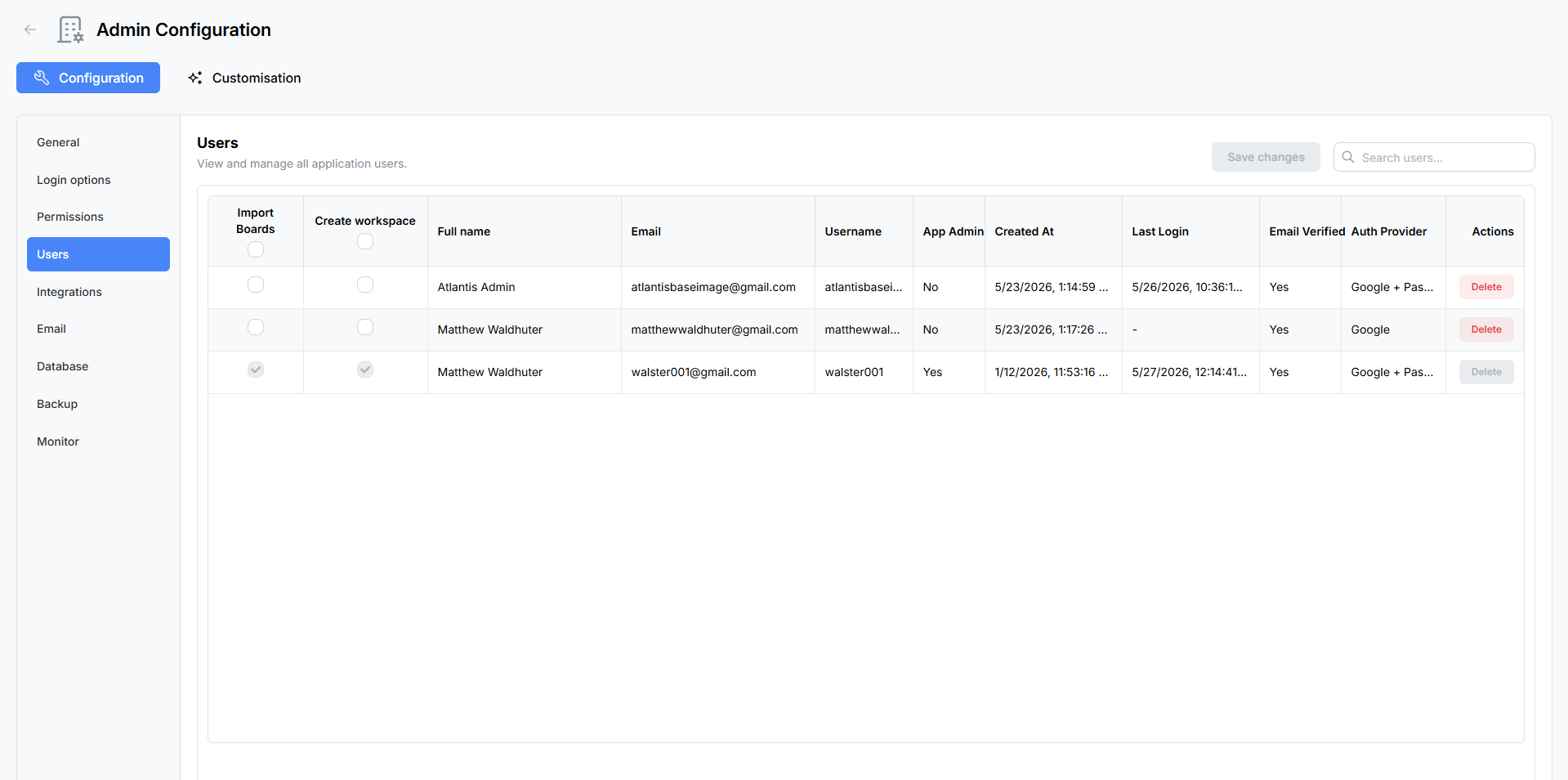
User List
All registered users are displayed in a searchable, sortable table. Use the search field at the top of the table to filter by name, email, or username.
Columns Displayed
| Column | Description |
|---|---|
| Import Boards | Checkbox — grants the user permission to import boards from external sources (Trello®, WeKan®, CSV, Atlantisboard JSON). |
| Create Workspace | Checkbox — grants the user permission to create new workspaces on the home page. |
| Full Name | The user’s display name. |
| The user’s registered email address. | |
| Username | The user’s unique username. |
| App Admin | Badge indicating whether the user holds global App Admin privileges. |
| Created At | Timestamp of when the account was registered. |
| Last Login | Timestamp of the user’s most recent successful sign-in. |
| Email Verified | Whether the user has completed email verification. |
| Auth Provider | The authentication method used — Local (email/password) or Google (OAuth). |
| Actions | Per-user action buttons (see below). |
Each capability column header includes a master checkbox that toggles the capability for all users at once.
Per-User Capabilities
Two capability flags can be toggled independently for each user:
- Import Boards — When enabled, the user can access the import workflow from the home page and upload board files. When disabled, the import option is hidden for that user.
- Create Workspace — When enabled, the user can create new workspaces. When disabled, the “Create Workspace” button is hidden.
These checkboxes are edited inline in the table. Changes are not saved automatically — you must click the Save button to persist them (see Batch Save below).
Actions
Each user row includes an Actions column with the following options:

Promote / Demote App Admin
- Promote — Elevates a regular user to App Admin status. App Admins have access to the full Admin Configuration panel, can manage all workspaces and boards, and can modify global settings.
- Demote — Revokes App Admin privileges from an administrator. The founding admin (the first user ever registered) cannot be demoted.
Lock / Unlock Account
- Lock — Immediately prevents the user from signing in. Useful for compromised accounts or policy violations. Locked users see an “account locked” message when they attempt to log in.
- Unlock — Restores sign-in access for a previously locked account. This also clears any automatic lockout triggered by consecutive failed login attempts.
Delete User
- Permanently removes the user’s account and disassociates them from all boards and workspaces.
- A confirmation modal appears before deletion to prevent accidental removal.
- Deleted users cannot be recovered — if they need access again, they must register a new account.
Caution: Deleting a user removes their membership from every board and workspace. Cards they created or are assigned to will retain their content, but the user reference will be cleared.
Batch Save
Capability changes (Import Boards and Create Workspace toggles) are collected in the browser and submitted together when you click the Save button at the bottom of the panel. This allows you to adjust multiple users in a single operation without triggering a network request for every checkbox change.
If you navigate away from the page before saving, unsaved capability changes are discarded.
Tips
- Use the search field to quickly locate users in large deployments.
- Click any column header to sort the table by that column.
- The App Admin badge updates immediately after promoting or demoting a user — no page refresh is required.
- Account lockouts triggered by three consecutive failed login attempts can be cleared from this panel using the Unlock action. See Password & Security for details on the lockout policy.
- For more information on configuring which roles users can be assigned on boards, see Permissions & Roles.