
Filtering & Search
As boards grow, finding the right cards becomes essential. Atlantisboard provides a flexible filtering and search system that lets you narrow down visible cards across all lists on a board.
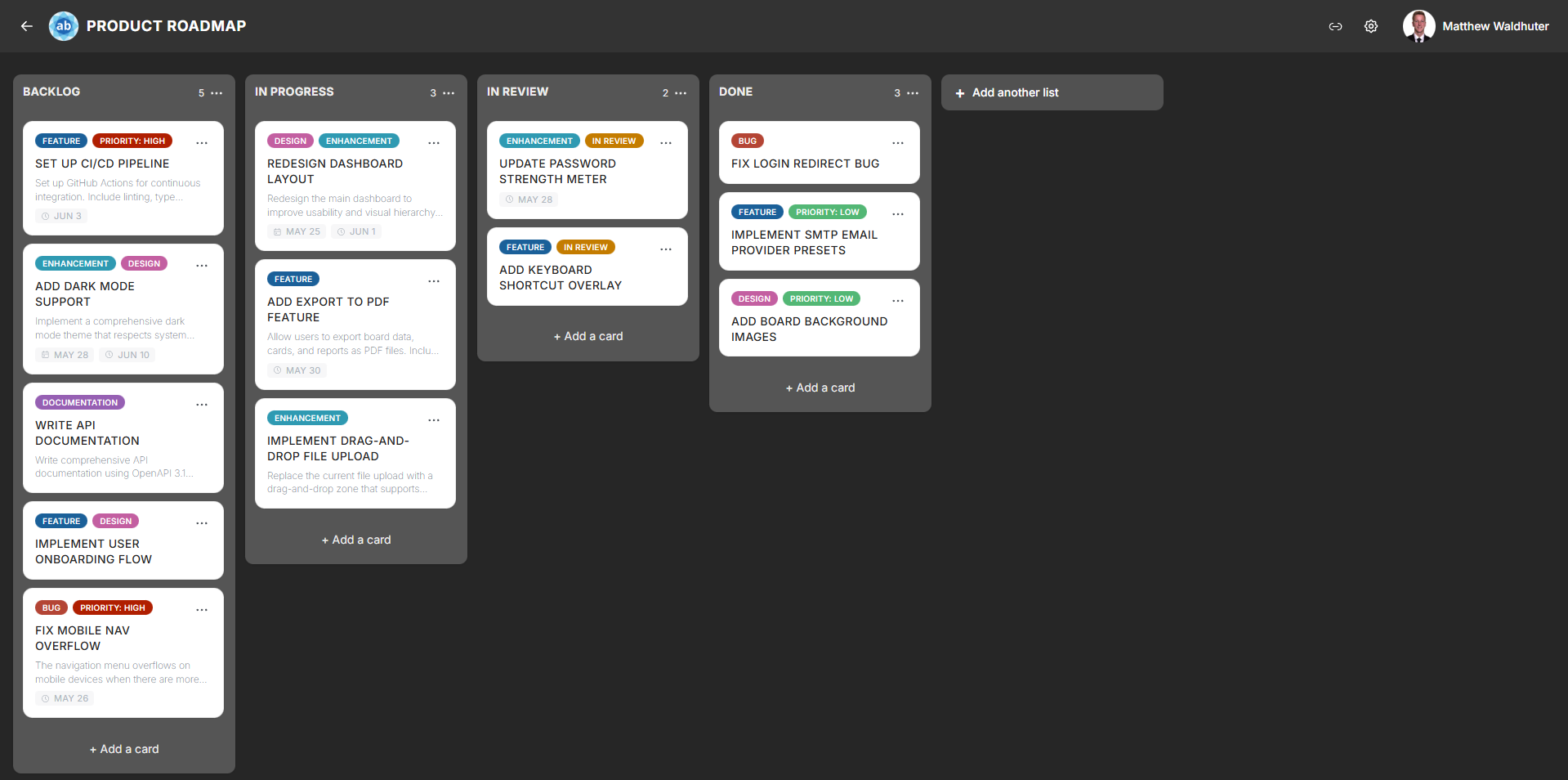
Board Filter Bar
The filter bar sits at the top of the board, providing quick access to all filter controls. When filters are active, only cards matching your criteria are displayed — non-matching cards are hidden from view.
Filter Types
You can filter cards using any combination of the following criteria:
Text Search
Type a search query into the search field to find cards by title or description content. The filter updates as you type, showing only cards that contain your search terms.
Label Filter
Filter by one or more labels:
- Click the label filter to see all labels available on the board.
- Select one or more labels to show only cards tagged with those labels.
- When multiple labels are selected, cards matching any of the selected labels are shown.
Member Filter
Filter by assigned members:
- Select one or more board members from the member filter.
- Only cards assigned to the selected members are shown.
- Useful for reviewing workload or finding your own tasks.
Due Date Filter
Filter by due date status:
- No due date — show cards without a due date set.
- Overdue — show cards whose due date has passed.
- Due soon — show cards with an approaching due date.
- Complete — show cards marked as complete.
Completion Status
Filter by whether cards are marked as complete or incomplete, helping you focus on outstanding work or review finished tasks.
Combined Filters
Filters can be combined for precise results. For example, you might:
- Search for “login” and filter by the “Bug” label to find all login-related bugs.
- Filter by a specific member and “Overdue” due date status to find that person’s overdue tasks.
- Combine text search with label and member filters for highly targeted results.
When multiple filter types are active, cards must match all active filter criteria to be displayed (filters are combined with AND logic across categories).
Active Filter Indicators
When one or more filters are active, the filter bar displays visual indicators so you always know that the board is showing a filtered view:
- Filter badges — each active filter type shows a badge or tag indicating what is being filtered.
- Highlighted filter bar — the filter bar may change appearance (colour or outline) to signal that filters are active.
- Card count — the number of matching cards is displayed alongside the filter indicators.
Clearing Filters
To remove filters and return to the full board view:
- Clear individual filters — remove specific filter criteria one at a time by deselecting labels, members, or date filters.
- Clear all — a “Clear filters” button resets all active filters at once, restoring the full board view.
Real-Time Filter Updates
Filters respond in real time to board changes:
- When another user adds, edits, or moves a card, your filtered view updates automatically to reflect the change.
- If a newly created card matches your active filters, it appears immediately.
- If an edited card no longer matches your filters, it disappears from view.
Search in Other Contexts
In addition to the board filter bar, search is available in several other areas of the application:
| Context | What You Can Search |
|---|---|
| Board member management | Search for users when adding members to a board. |
| Label management | Search labels by name when managing the board’s label set. |
| Admin user list | Search all registered users by name, email, or username. |
Related Pages
- Board Overview — the board layout where filters are applied.
- Cards — the cards being filtered.
- Card Detail — viewing full card information.
- Board Settings: Card Settings — toggle which card elements are visible (affects what is searchable on preview).