
Theme & Colouring
The Theme & Colouring sub-panel allows you to personalise the visual appearance of your board by selecting from built-in system themes or your own custom creations.
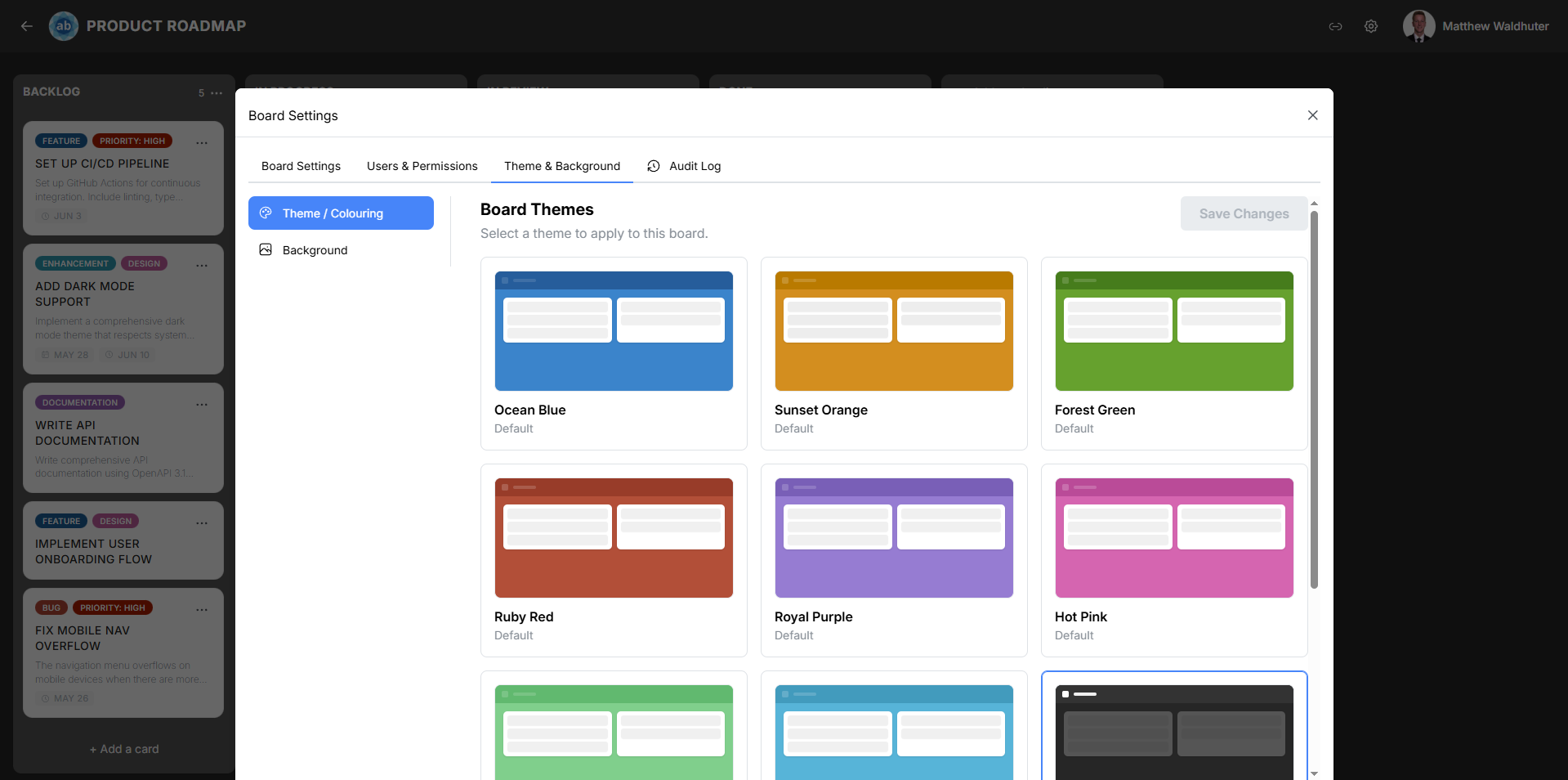
Accessing the Theme Panel
- Open a board and click the gear icon in the board navbar.
- Navigate to the Theme & Background tab.
- Select the Theme & Colouring sub-panel.
Theme Catalog Grid
The panel displays a grid of available theme cards. Each card shows:
- The theme name.
- A colour-swatch preview strip showing representative colours from the palette.
Themes are divided into two categories:
System Themes
Eight built-in themes ship with every Atlantisboard installation. These cannot be edited or deleted, but they can be duplicated for customisation.
| Theme | Description |
|---|---|
| Ocean Blue | The default theme — calm blue tones reminiscent of deep water. |
| Sunset Orange | Warm orange and amber hues inspired by golden-hour skies. |
| Forest Green | Natural, earthy green tones evoking dense woodland. |
| Ruby Red | Bold, confident reds with a gemstone-like richness. |
| Royal Purple | Deep, regal purple tones with a luxurious feel. |
| Hot Pink | Vibrant, energetic pink that commands attention. |
| Mint Green | Fresh, cool mint and seafoam for a relaxed aesthetic. |
| Teal | Sophisticated blue-green tones balancing warmth and calm. |
Custom Themes
Any themes you’ve created via the Custom Theme Editor appear alongside system themes in the catalog. Custom themes are user-scoped — each user manages their own collection.
Applying a Theme
To apply a theme to the current board:
- Locate the theme card in the catalog.
- Click Select (or click the theme card directly).
The board’s appearance updates immediately — the navbar, list columns, card detail window, and scrollbars all adopt the new colour palette.
Previewing a Theme
Theme cards include a colour-swatch strip that gives you a visual preview before committing. The colours shown represent the primary palette slots used across the board interface.
Theme Card Actions
Each theme card offers contextual actions depending on its type:
| Action | System Themes | Custom Themes |
|---|---|---|
| Select (apply to board) | Yes | Yes |
| Edit (open theme editor) | — | Yes |
| Duplicate (create editable copy) | Yes | Yes |
| Delete (remove permanently) | — | Yes |
- Duplicate is useful when you want to start from a system theme and make adjustments — it creates an editable copy in your custom themes collection.
- Delete permanently removes the custom theme. A confirmation modal prevents accidental deletion.
Adding a Custom Theme
Click the Add custom theme button to open the Custom Theme Editor with a blank palette. You can then configure every colour slot, name your theme, and save it to your collection.
Intelligent Contrast
The Intelligent Contrast toggle is available at the top of the theme panel. When enabled, Atlantisboard automatically adjusts text colours to maintain a WCAG 4.5:1 contrast ratio against their respective background colours.
This means:
- If you choose a dark navbar background, the text and icons will lighten automatically.
- If you set a light list background, the header text remains dark for readability.
- You don’t need to manually pair every text colour with its background — the system handles it.
Toggle Intelligent Contrast on or off depending on whether you want automatic accessibility adjustments or full manual control over your palette.
How Themes Work
Themes define a palette of CSS custom properties (variables) applied to board elements. The palette contains 20 named colour slots organised into four sections:
- Navbar — Background and border/icon colours for the board navigation bar.
- Lists / Columns — Backgrounds, text, shadows, and controls for list columns.
- Card Detail Window — Background, text, and button styles for the card detail modal.
- Scrollbars — Thumb colour for custom scrollbar styling.
For full details on each colour slot, see the Custom Theme Editor documentation.
Related Pages
- Themes Overview — Complete guide to the theming system and all default themes.
- Custom Theme Editor — Create and edit your own themes.
- Theme Sharing & Management — Permissions, applying, and managing themes.
- Background — Configure the board background image or colour.