
Workspaces
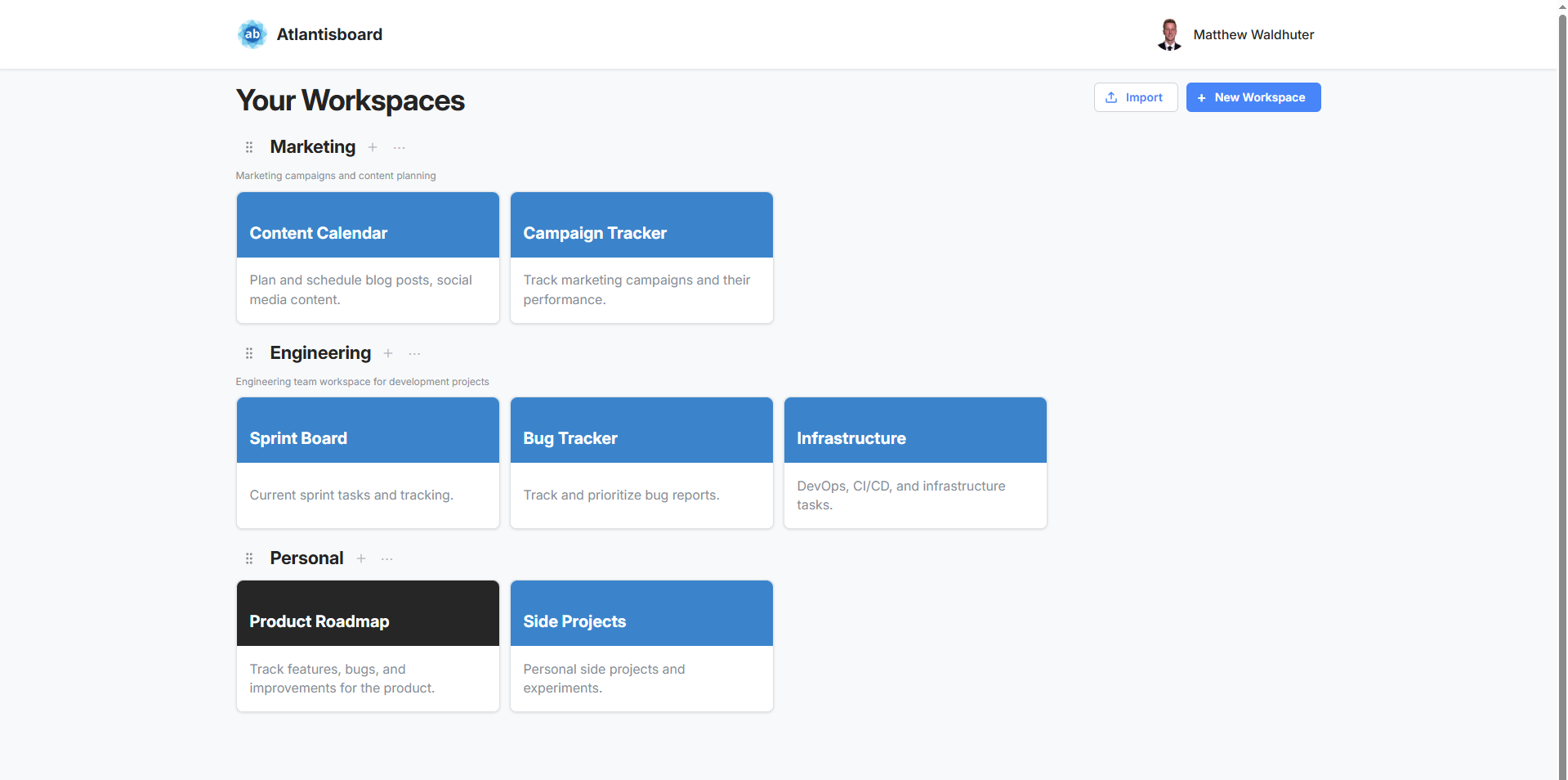
Workspaces are organisational containers that group related boards together. Think of them as folders for your projects — a workspace for “Marketing”, another for “Engineering”, and so on. Every board belongs to exactly one workspace.
What Is a Workspace?
A workspace is a named group of boards. On the home page, each workspace appears as a section containing its board tiles. Workspaces help you:
- Organise boards by team, project, or any grouping that makes sense to you.
- Control access by managing workspace membership independently of individual boards.
- Declutter the home page by collapsing workspace sections you are not actively using.
Creating a Workspace
To create a new workspace:
- Click the Create Workspace button on the home page (this button is only visible if you have the workspace creation capability — see User Management).
- Enter a name (required, up to 100 characters).
- Optionally add a description (up to 500 characters) to explain the workspace’s purpose.
- Confirm to create the workspace.
The new workspace section immediately appears on your home page, ready for you to add boards.
Workspace Context Menu
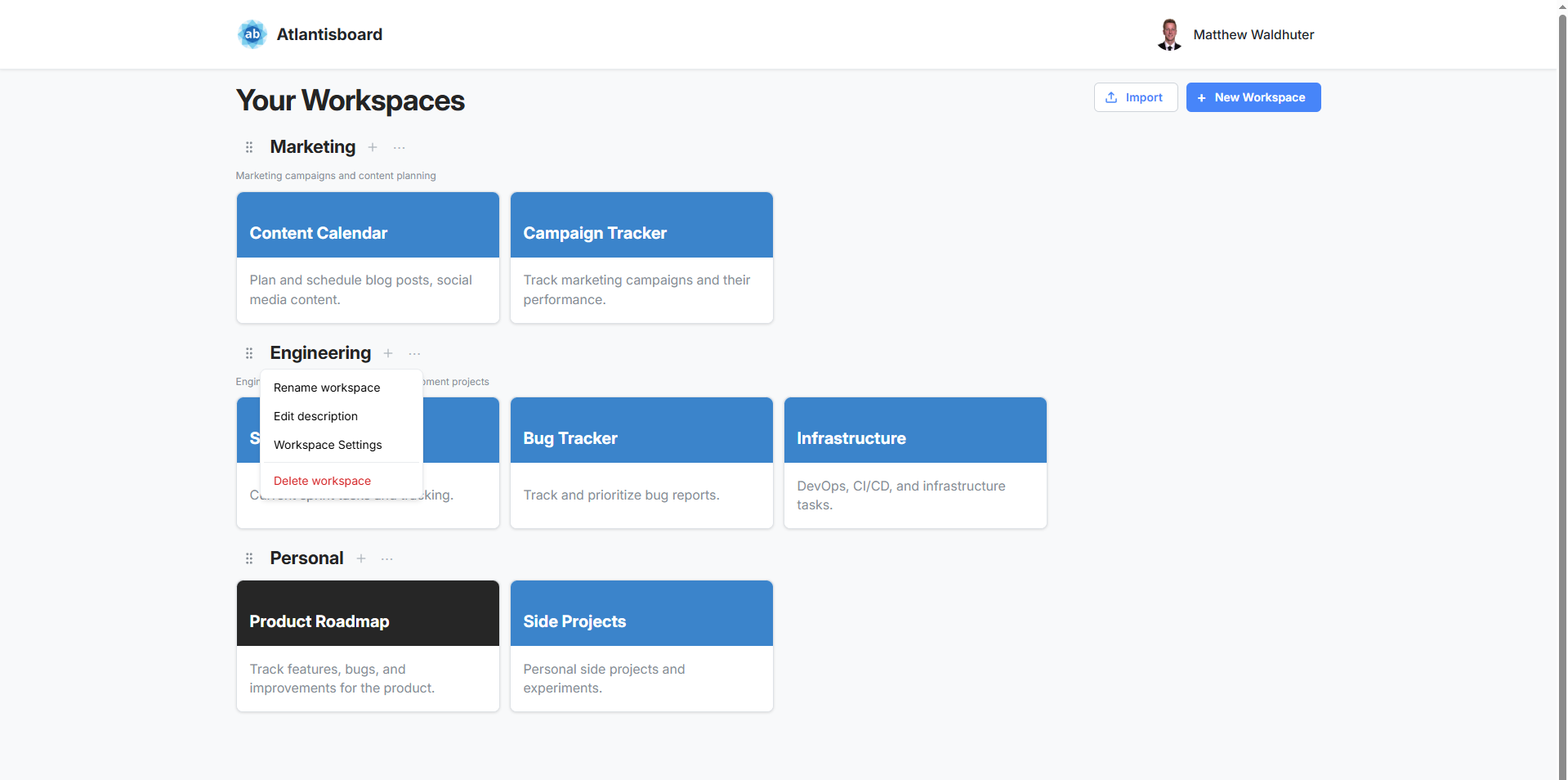
Right-click a workspace header (or click the three-dot menu icon) to access the context menu:
| Action | Description |
|---|---|
| Rename workspace | Change the workspace’s display name. |
| Edit description | Update or add a description for the workspace. |
| Workspace settings | Open additional configuration options for the workspace. |
| Delete workspace | Permanently remove the workspace and all its boards. Only available to the workspace owner. Requires confirmation. |
Workspace Members
Workspaces have their own member lists, separate from individual board membership:
- Adding members — invite users to the workspace so they can see and access its boards.
- Removing members — revoke workspace access. The user loses visibility of the workspace and its boards on their home page (unless they are a direct board member).
- Assigning roles — each workspace member has a role that determines what they can do within that workspace.
- Viewing the member list — see who currently belongs to the workspace and their assigned roles.
Moving Boards Between Workspaces
You can move a board from one workspace to another directly from the home page by dragging its tile into a different workspace section. The board retains all its content, members, and settings — only its parent workspace changes.
Activity Log Retention
Each workspace has a configurable activity log retention period:
- Range: 1 to 365 days (default: 30 days).
- Activities older than the retention period are automatically cleaned up.
- Adjust this setting from the workspace settings panel to balance between historical visibility and storage.
Reordering Workspaces
Drag workspace section headers up or down on the home page to reorder them. Your preferred order is saved per user, so each team member can arrange workspaces in the order that suits them best.
Related Pages
- The Home Page — overall home page layout and navigation.
- Creating & Managing Boards — how to create boards within a workspace.
- Permissions & Roles — understanding workspace-related permissions.