
Invites & Sharing
The Invites system provides a convenient way to share board access with others by generating invite links. Recipients can join the board directly by visiting the link — no manual admin action required.
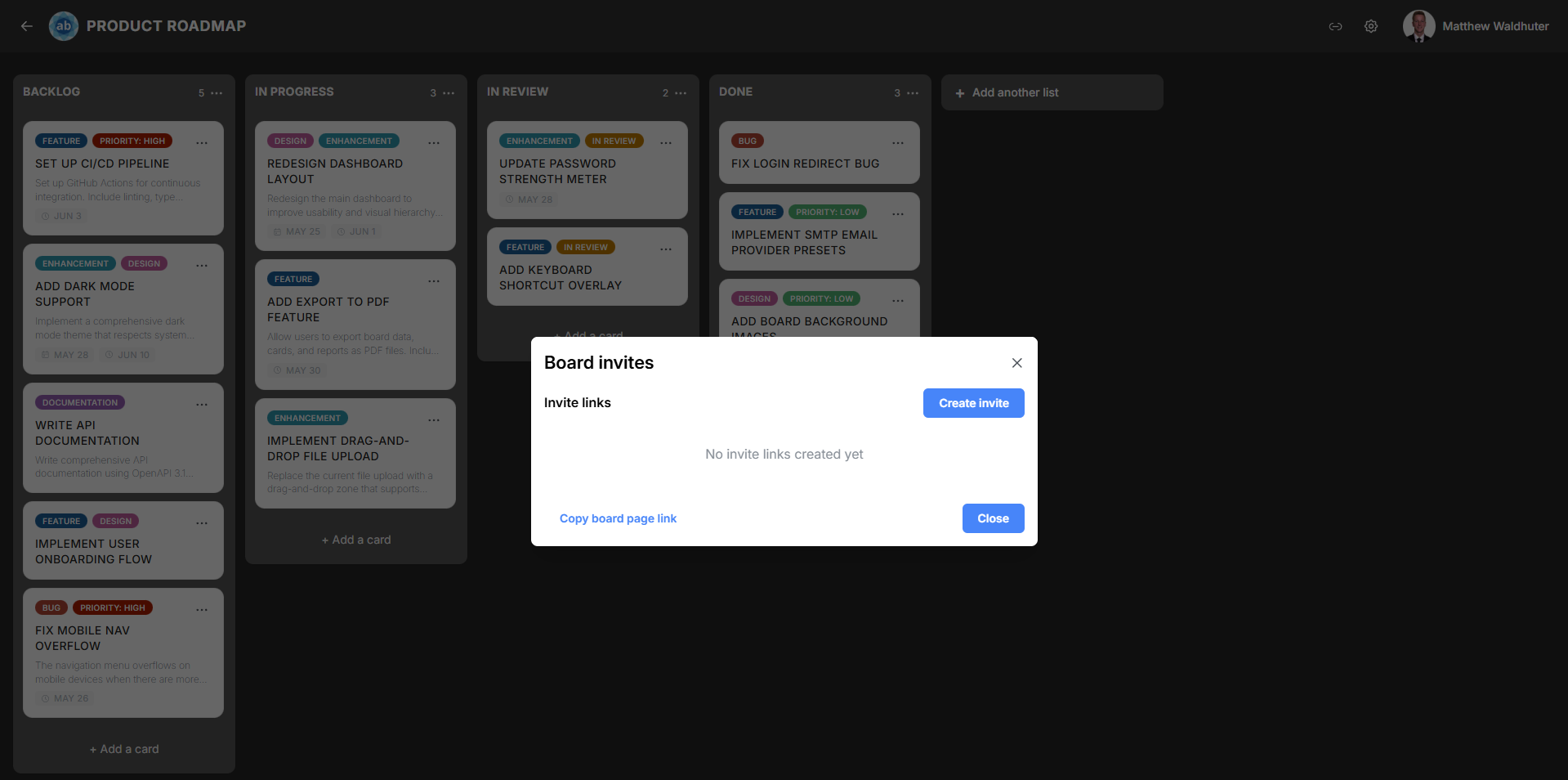
Accessing the Invites Modal
The Invites modal is accessible from the Invites button on the board navbar. This button is visible to users who have the invites.view permission in their role.
Quick Board Link
At the top of the Invites modal, you can copy the board page link — a direct URL to the board. This is useful for sharing with users who already have board membership and simply need the link.
Creating an Invite Link
Users with the invites.create permission can generate new invite links:
- Click Create Invite Link.
- Configure the invite:
| Option | Description |
|---|---|
| Invite type | One-time — The link can only be used once, then it expires. Recurring — The link can be reused by multiple people. |
| Default role | The role automatically assigned to anyone who joins via this link (e.g. Member, Observer). |
- Click Create.
The generated link is displayed and ready to copy. Share it via email, messaging, or any other channel.
Invite Link Behaviour
When someone visits an invite link:
- Existing users — If the visitor is logged in (or logs in after clicking), they are added to the board with the role specified in the invite.
- New users — If registration is set to invite-only, the invite link grants them permission to register. After registration, they are automatically added to the board.
- One-time links — Deactivated after a single successful use.
- Recurring links — Remain active indefinitely until manually deleted.
Viewing Active Invite Links
The Invites modal displays a table of all active invite links for the board:
| Column | Description |
|---|---|
| Link | The invite URL (click to copy). |
| Type | One-time or Recurring. |
| Role | The role assigned to invitees. |
| Created | When the link was generated. |
Deleting an Invite Link
Users with the invites.delete permission can remove invite links:
- Locate the link in the active invites table.
- Click the Delete button next to it.
- Confirm the deletion.
Once deleted, the link immediately stops working. Anyone who tries to use a deleted link will see an error message.
Email Invites
In addition to link-based invites, you can invite users directly by email:
- Enter one or more email addresses.
- Select the role for invitees.
- Send the invitation.
Recipients receive an email with a link to join the board. If they don’t yet have an account, the email guides them through registration.
Pending Invites
The modal also shows a list of pending invites — invitations that have been sent but not yet accepted. This helps administrators track who has been invited and follow up if needed.
Real-Time Updates
Invite link creation and deletion propagate in real-time via Socket.io. If multiple administrators are managing invites simultaneously, changes appear instantly for all viewers.
Permissions Summary
| Action | Required Permission |
|---|---|
| View invite links | invites.view |
| Create invite links | invites.create |
| Delete invite links | invites.delete |
Related Pages
- Users & Permissions — Manage board members and roles directly.
- Permissions & Roles — Configure the global permission system including invite-related permissions.
- Registration & Sign-In — How invite-only registration mode works.